How subcontractors get started with Sync
This guide explains how subcontractors can create a Sync account, connect with a main contractor, access shared projects and complete the required steps before arriving on site.
- Main contractor
- The company managing the project.
- Subcontractor
- The company being invited to work on the project.
- Engineers
- The people attending site or carrying out the work.
- Users
- The people who log in to Sync to manage the subcontractor portal.
Before you start
Before you begin, make sure you have the following ready:
- Access to your company email address.
- Your company details.
- Details of the people who need access to manage your Sync account.
- Details of the engineers who may attend site.
- Copies of required company credentials, such as insurance documents.
- Copies of required engineer credentials, such as certifications or qualifications.
Create your Sync account
If your company does not already have a Sync account, you will need to create one first.
Go to the Sync registration page and enter your company details. Once your account has been created, you will be able to access your subcontractor portal.
During setup, make sure your company information is accurate. This helps the main contractor identify your business correctly when connecting you to a project.
Go to the Sync registration pageCreate your account
Set up your company profile
Once you have logged in, go to your account settings and review your company profile.
Check that the following information is correct:
- Company name.
- Registered address.
- Main contact details.
- Billing or business information, where required.
- Company email addresses used for notifications.
Keeping this information up to date helps avoid delays when the main contractor reviews your details or contacts your team.
Find your linking code
Your linking code is found in your Account Settings within the subcontractor portal.
This code is used by the main contractor to connect your Sync account to their project.
Once you have found your linking code, send it to the main contractor. They will use it to share the relevant project with your company.
The main contractor shares the project
The main contractor must create the project in their own Sync account first.
After the project has been created, they can use your linking code to connect your subcontractor account to the project.
Once this has been done, the shared project will appear in your subcontractor portal.
View your shared projects
When the main contractor has shared access, you will be able to view the projects connected to your company.
Open the project to see the details that have been shared with you. This may include:
- Project information.
- Site details.
- Shared documents.
- Drawings or project files.
- Health and safety requirements.
- Induction requirements.
- Compliance actions.
- Other project information made available by the main contractor.
You will only see the information that the main contractor has chosen to share.
Add users to manage your portal
Users are people who need to log in to Sync and help manage your subcontractor account. This may include:
- Business owners.
- Office administrators.
- Contracts managers.
- Health and safety managers.
- Compliance administrators.
- Project coordinators.
Users can help manage your company profile, documents, engineers, credentials, reports and project information. Only add users who need access to manage your Sync account.
Add your engineers
Engineers are the people who may attend site or carry out work on behalf of your company. Add each engineer who may need to work on a shared project.
In Sync, an engineer is added as a user. Create the user, tick "Is this user an engineer?" and choose their engineer role. This keeps their login, site work and credentials all against the same person.
For each engineer, check that the following information is correct:
- Full name.
- Contact details.
- Role.
- Status.
- Required credentials.
- Additional credentials, where needed.
The engineer's role is important because it may determine which credentials or qualifications are required.
Upload engineer credentials
Once your engineers have been added, upload the required credentials for each person. This may include:
- Training records.
- Certifications.
- Qualifications.
- Trade cards.
- Health and safety documents.
- Any other documents required for their role.
Each required credential should include the correct expiry date and supporting document.
Upload company credentials
You may also need to upload company-level credentials. These may include:
- Public liability insurance.
- Employer's liability insurance.
- Professional accreditations.
- Company certifications.
- Health and safety policies.
- Other documents requested by the main contractor.
Company credentials help the main contractor confirm that your business meets the required compliance standards before work begins.
Complete required inductions
Before attending site, check whether any inductions need to be completed. If an induction is required, complete it before arriving on site.
This helps reduce delays at the point of entry and gives the main contractor better visibility of who has completed the required steps.
Each engineer should complete the required induction for the project or site they are attending.
Check project requirements before attending site
Before anyone from your company attends site, check the shared project and confirm that all required information is complete. Use this checklist:
- Your company profile is complete.
- Your linking code has been sent to the main contractor.
- The project is visible in your subcontractor portal.
- Your users have been added where needed.
- Engineers attending site have been added.
- Engineer roles are correct.
- Required engineer credentials have been uploaded.
- Required company credentials have been uploaded.
- Expiry dates are correct.
- Required inductions have been completed.
- Any open compliance actions have been reviewed.
- The shared project details have been checked.
Create health and safety reports
Where enabled, you can create health and safety reports from your subcontractor portal. This may include:
- Near miss reports.
- Accident reports.
- Incident reports.
- Site observations.
- Follow-up actions.
Health and safety reporting helps keep project records clear and gives the main contractor better visibility of issues that may need attention.
Complete audits where required
If audits have been made available to you, complete them through Sync.
Audits may be used to check site conditions, working practices, compliance or project-specific requirements.
Make sure any actions or issues raised during an audit are reviewed and updated as required.
Keep your records up to date
Your Sync account should be kept up to date throughout the project. You should regularly check:
- Engineer credentials.
- Company credentials.
- Expiry dates.
- Induction status.
- Health and safety reports.
- Audit actions.
- User access.
Your day on the mobile app
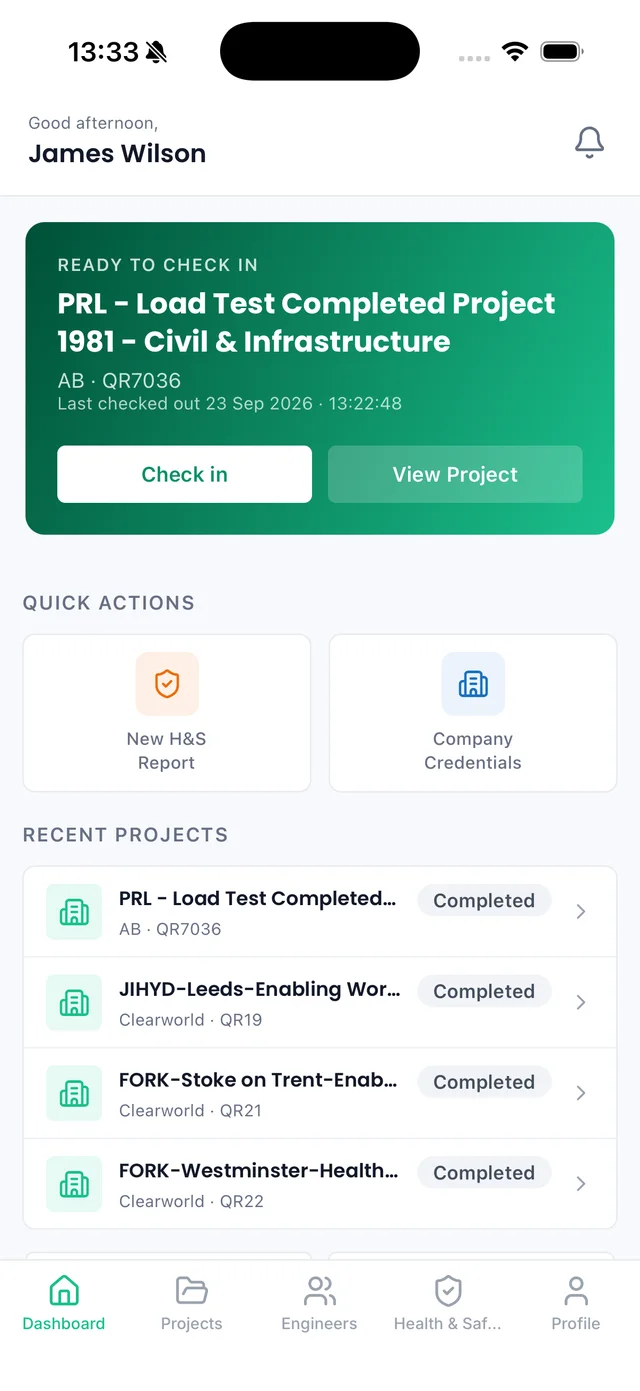
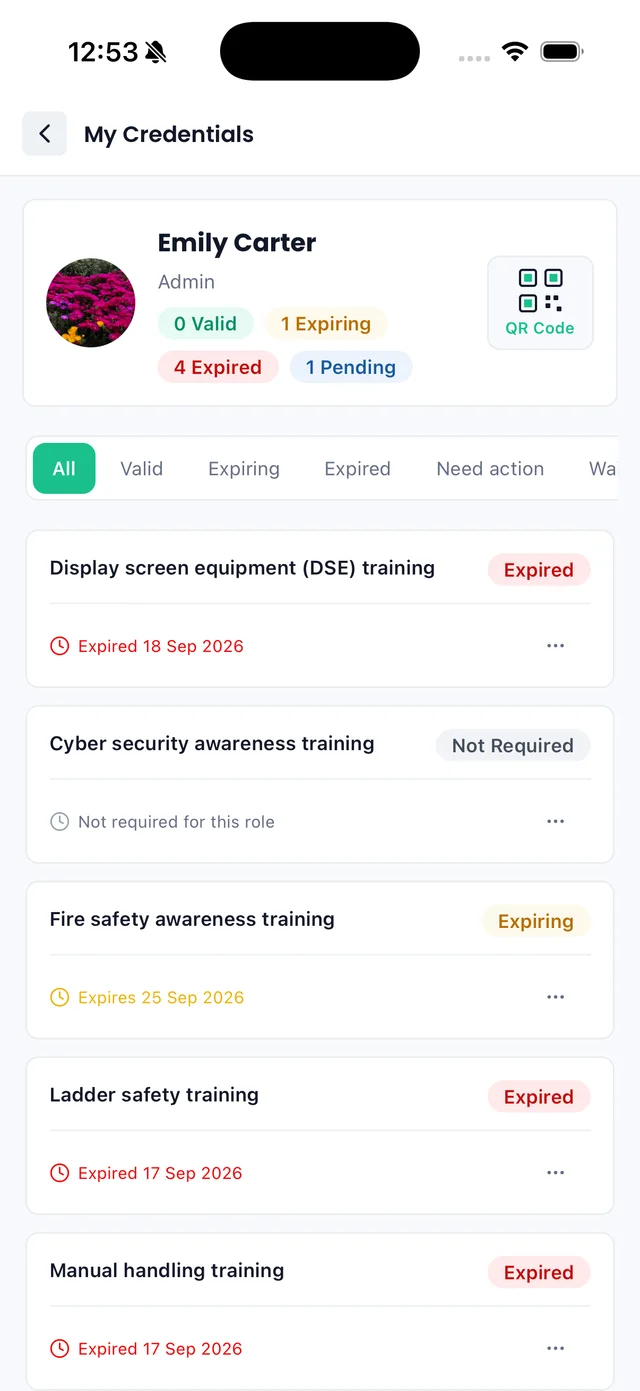
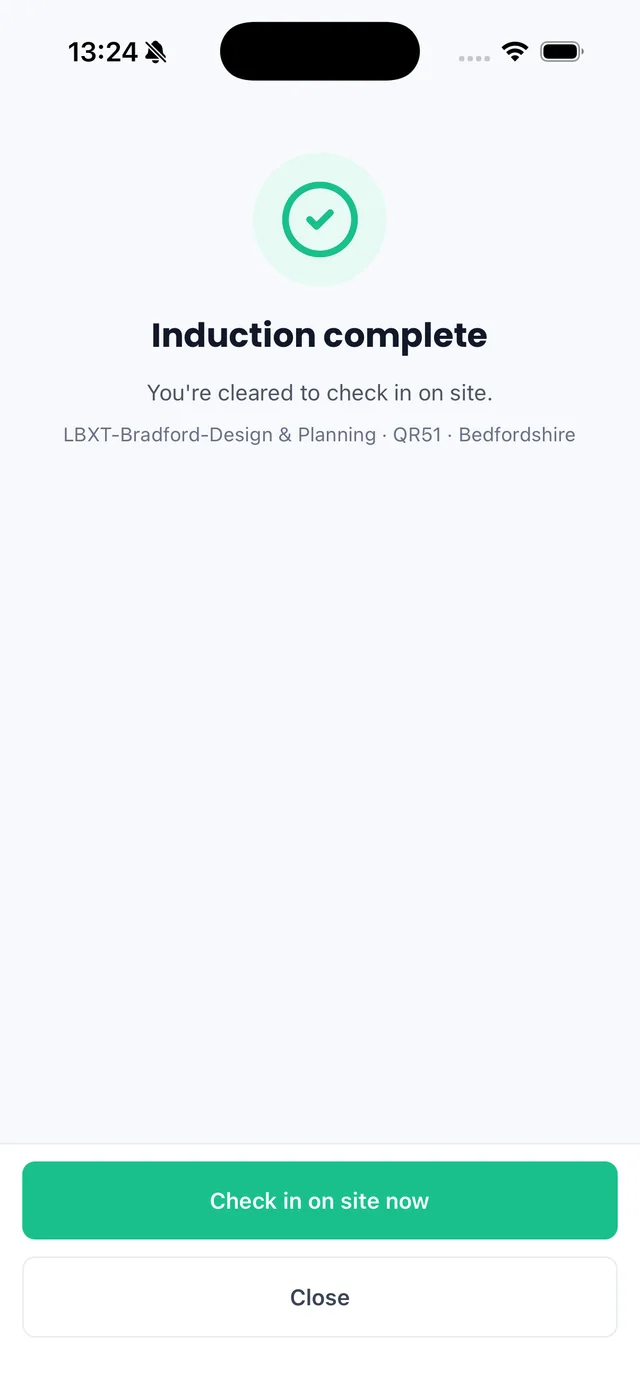
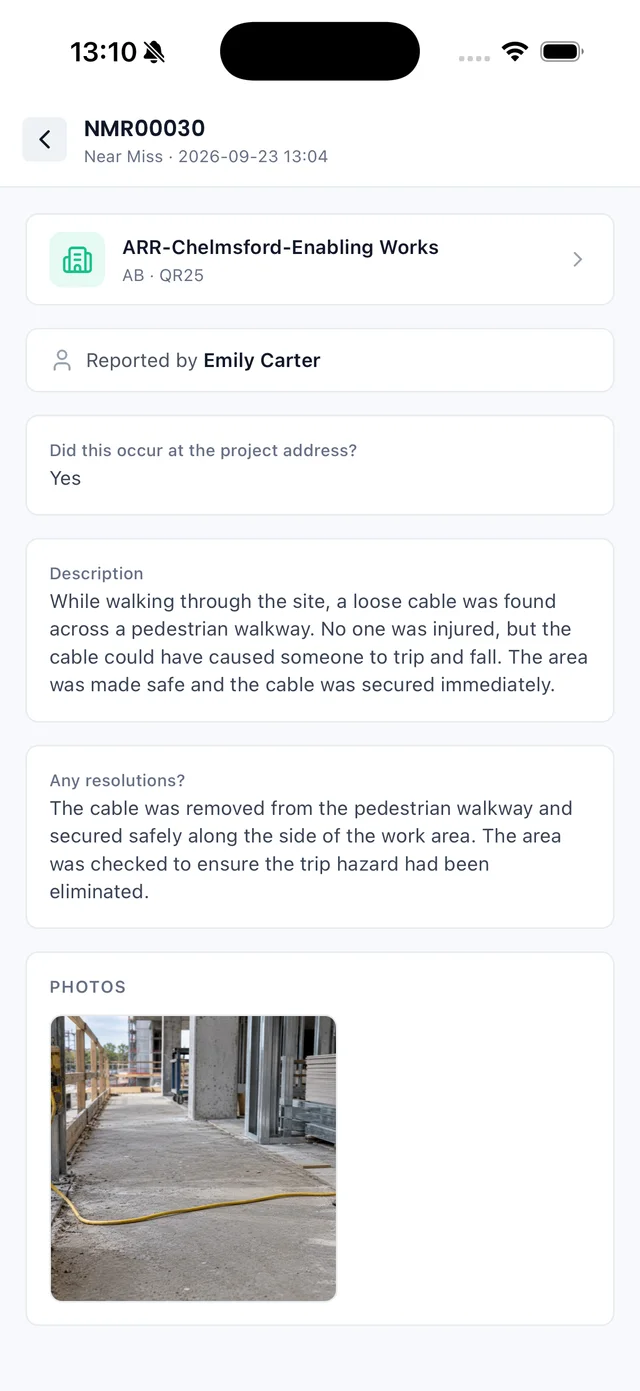
Most of the day-to-day work can be done from the Sync mobile app: check in to the project you are working on, keep an eye on your credentials, complete inductions and raise health and safety reports from site.
Users and engineers: what is the difference?
Someone who logs in to Sync to manage your subcontractor portal. For example, an office administrator who manages documents and credentials.
Someone who may attend site or carry out work. For example, an electrician who needs role-specific credentials and inductions.
Why you may not see a project
If you have logged in but cannot see a project, check the following:
- ?Has the main contractor created the project?
- ?Has the main contractor shared the project with your company?
- ?Did you send the correct linking code?
- ?Are you logged into the correct Sync account?
- ?Has the main contractor given your company access to the project?
- ?Has access been removed or changed?
- ?Do you have the right user permissions within your company account?
If you are unsure, contact the main contractor and ask them to confirm that the project has been shared with your subcontractor account.
What to do if your linking code does not work
If the main contractor cannot link your account, check that you have copied the linking code correctly from Account Settings.
Make sure you have sent the current code from the correct subcontractor account.
If the issue continues, ask the main contractor to confirm the code they are using and contact Sync support if needed.
What to do if a credential has expired
If a company or engineer credential has expired, upload the updated document and enter the correct new expiry date. Do this before attending site where possible.
What to do before sending engineers to site
Before sending engineers to site, check the following:
- The engineer has been added to Sync.
- Their role is correct.
- All required credentials are uploaded and valid.
- Any required induction has been completed.
- The shared project details have been reviewed.
- There are no outstanding compliance actions that could delay access.
This helps ensure your team arrives prepared and reduces the chance of being delayed at site entry.
Summary
To use the subcontractor portal correctly:
- 1Create your Sync account.
- 2Complete your company profile.
- 3Find your linking code in Account Settings.
- 4Send the linking code to the main contractor.
- 5Wait for the main contractor to share the project.
- 6Open the shared project in your portal.
- 7Add any users who need to manage the account.
- 8Add engineers who may attend site.
- 9Upload company and engineer credentials.
- 10Complete any required inductions.
- 11Keep your records up to date throughout the project.
Following these steps helps the main contractor review your information more easily and helps your team arrive site-ready with fewer delays.