How to add users and engineers
This guide explains how subcontractors add users to their Sync account and mark them as engineers. There are two user types, Admin and Group member, and any user can also be an engineer with their own engineer role and credentials.
- Two user types
- Admin (full access) or Group member (mainly view).
- Engineers
- Any user can also be an engineer, with an engineer role.
- Where to start
- From Account, on the Users tab. Adding users is Admin only.
- Why it matters
- Engineer credentials prove your team is site-ready and compliant.
Before you start
Before adding users or engineers, check the following:
- You are an Admin, or an Admin can add the user.
- You know the person’s name and email address.
- You know whether they should be an Admin or Group member.
- You know their engineer role, if they are an engineer.
- Your engineer roles and credentials are set up in Config Settings.
Open the Users tab
From the main Sync dashboard, select Account from the left-hand menu, then open the Users tab. This lists everyone in your company and is where you create new users.
Select Create user
Select Create user. The screen splits into User details on the left and User permissions on the right. You complete both before saving.
Enter the user details
Complete the user details on the left. Fields marked with a red asterisk are required.
The person’s name, as it should appear in Sync.
Their work email. This is where the invitation to join Sync is sent.
Optional, to describe their role in your company.
Choose the role
Select the user’s role. There are two user types in the subcontractor portal:
Full access to your company account, including users, engineers, config settings and shared projects.
Mainly view access to shared projects, plus the ability to check in and out on site.
Set the permissions
On the right, permissions are grouped into tabs (General, Accounts, Projects) with Create, Edit, View and Delete options. Group members mainly get View access to shared projects, plus the ability to create log entries so they can check in and out on site. Tick only what the user needs.
Mark them as an engineer
If the person works on site, tick Is this user an engineer? in the user details. This adds them as an engineer as well as a user, so you can hold their engineer role and credentials against them. Select their engineer role when prompted.
Add the user
Once the details, role and permissions are set, select Add user to save. An invitation to join Sync is sent to their email address, and they appear in your Users list.
Open Engineers
Select Engineers from the left-hand menu to see everyone marked as an engineer. Each row shows their engineer role and a credentials status. Statuses may include:
- Valid, all credentials in date.
- Action required, something needs attention.
- Expired, a credential is out of date.
Manage credentials
Select See credentials for an engineer to open their credentials. Here you can set expiry dates and attach documents for each credential, such as a CSCS card or first aid certificate. Keeping these up to date keeps the engineer’s status green.
Share credentials
From the Engineers list you can prove your team is site-ready:
Open the engineer’s credentials to check what is held, expiry dates and attached documents.
Share the engineer’s credentials with a main contractor to prove compliance.
Generate a QR code an engineer can present on site to show they are credentialed.
This is how a main contractor can quickly confirm your engineers hold the right credentials before they start on site.
Credentials on the mobile app
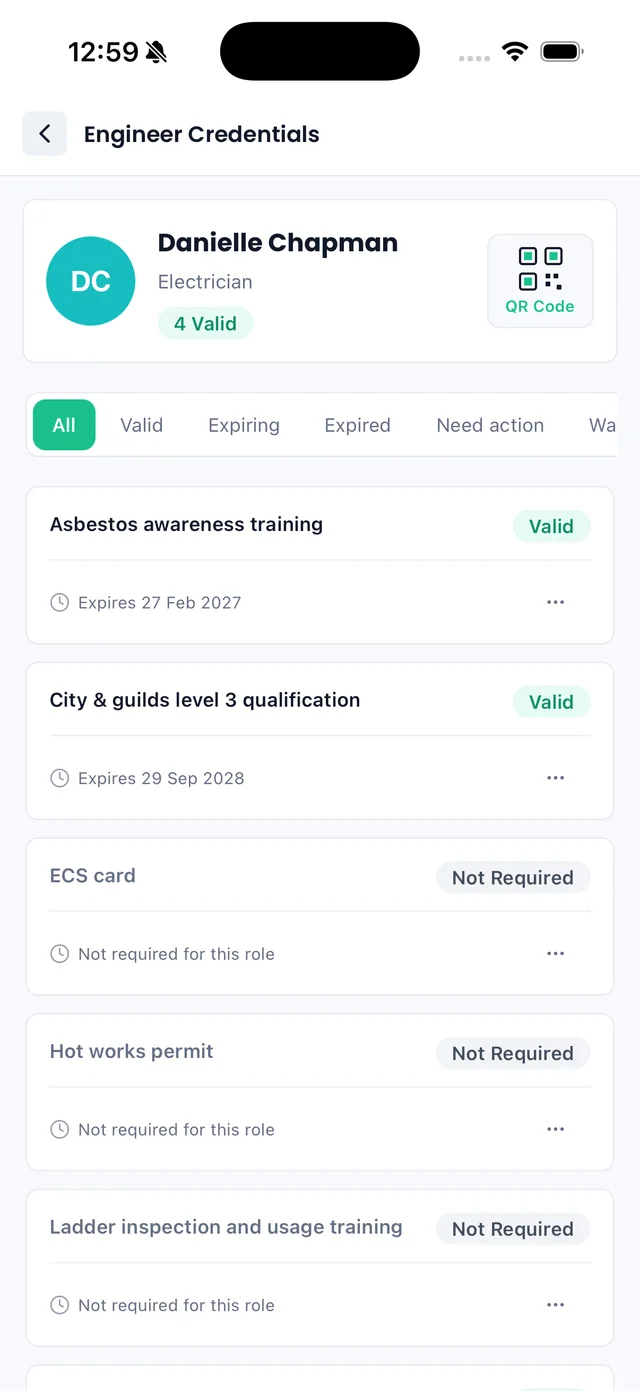
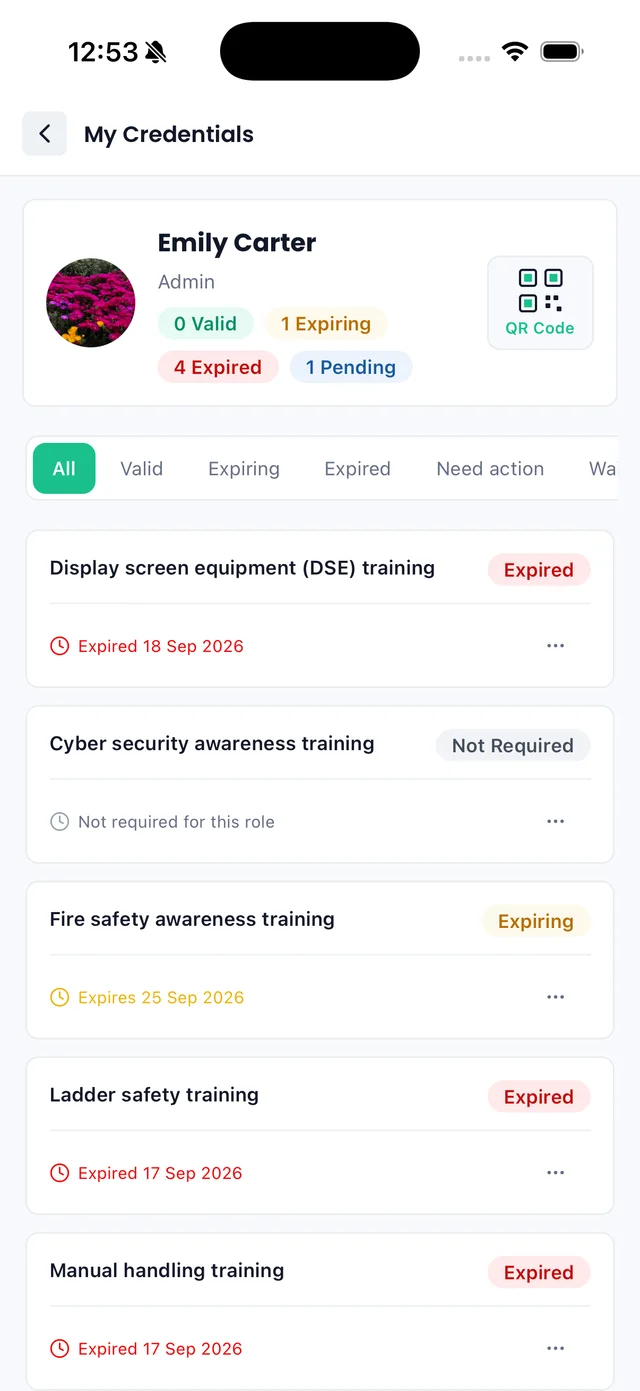
On the Sync mobile app, each engineer has a credentials page showing what is valid, expiring, expired or not required for their role, with a QR code at the top. People can also check their own credentials under My Credentials.
Common issues
Adding users is an Admin task. If you are a Group member, ask an Admin in your company to create the user.
There are two user types: Admin and Group member. Engineer roles are separate and are managed in Config Settings.
Engineer roles are managed in Config Settings under Engineer Roles. Add the role there first, then it appears when marking a user as an engineer.
Open See credentials for that engineer, update the expiry date and attach the latest document. The status updates once the credential is in date.
Check the email address is correct and ask them to check their spam folder. You can resend the invitation from the user record.
Summary
To add users and engineers in Sync:
- 1Go to your account and open the Users tab.
- 2Select Create user and enter their details.
- 3Choose Admin or Group member.
- 4Set the permissions for the user.
- 5Tick “Is this user an engineer?” if they work on site.
- 6Select Add user to save and send the invite.
- 7Open Engineers to manage engineer roles and credentials.
- 8Share credentials or a QR code to prove compliance on site.
Users log in and work in Sync; engineers carry the credentials that prove they are site-ready. Marking a user as an engineer links the two, so one person is covered on both sides.