How to work in a project
This guide explains how main contractors work within a project in Sync once it has been created. A project record brings together the main areas needed to manage a job: project details, team, tasks, financials, compliance, documents, drawings and activity history. The sections you see may depend on your user permissions.
- What it is
- One project record for details, team, tasks, financials, compliance and documents.
- Where it starts
- From Projects in the left-hand menu, then open the project.
- How it is organised
- Five tabs: Summary, Overview, Financials, Compliance and Documents.
- What you can see
- The sections and actions available may depend on your permissions.
Before you start
Before working in a project, check that the project has already been created. You may also need the following records or information already set up in Sync:
- The project has already been created.
- The customer record exists.
- The trade partners are created and active.
- The project team users are set up.
- Departments, workstreams and services are available.
- Any documents, drawings and financial information are to hand.
- You know which areas your permissions give you access to.
Go to Projects
From the main Sync dashboard, select Projects from the left-hand menu to open the Projects table. From here you can search for a project, filter the table, change visible columns, save a table view, create a new project or open an existing one. Select the project you want to work on.
Review the project header
When the project opens, the project name is shown at the top of the page. You may also see a Shared label if the project has been shared with a customer or subcontractor portal. The main project actions sit in the top right:
Give approved customer portal or subcontractor portal users access to the project.
Change the current project status so teams can see where the project sits.
Amend the project record, such as details, dates, departments and team.
Use the project tabs
Each project is organised into key tabs, each holding a different part of the record. Use them to move between the details, tasks, financials, compliance information and documents.
- Summary for the core project details.
- Overview for tasks, comments and activity.
- Financials for CVR and financials.
- Compliance for health, safety and site readiness.
- Documents for drawings and project documents.
Projects on the mobile app
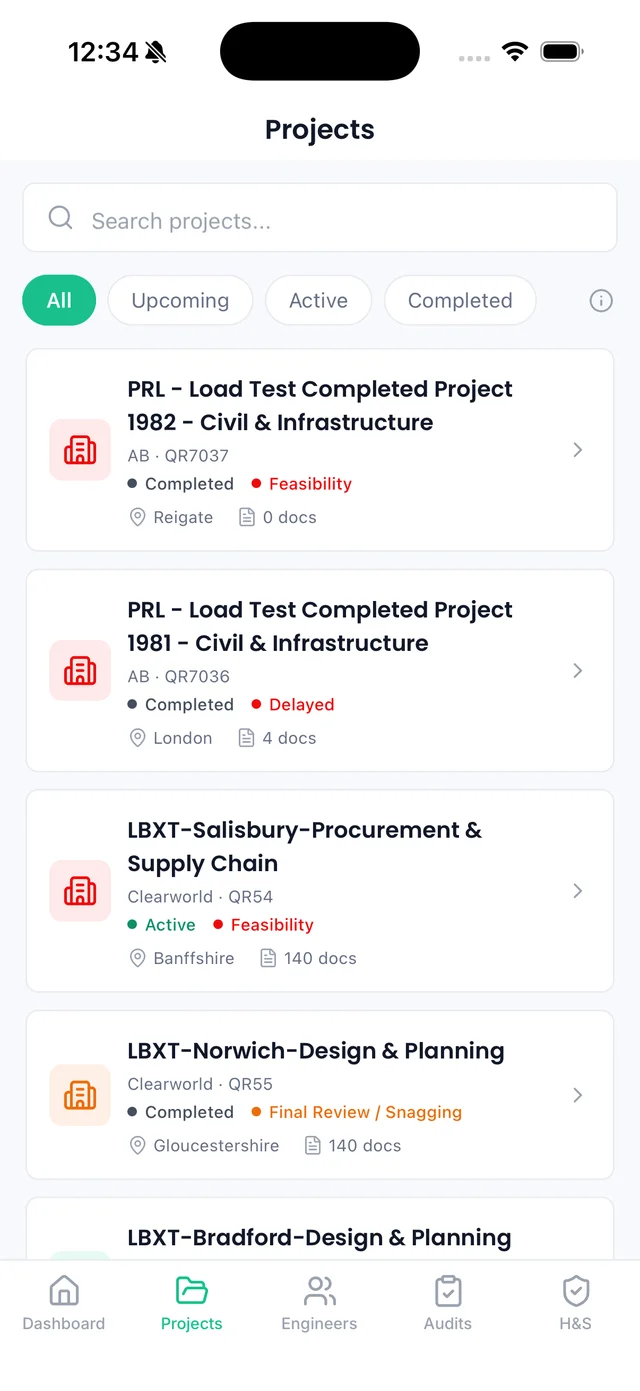
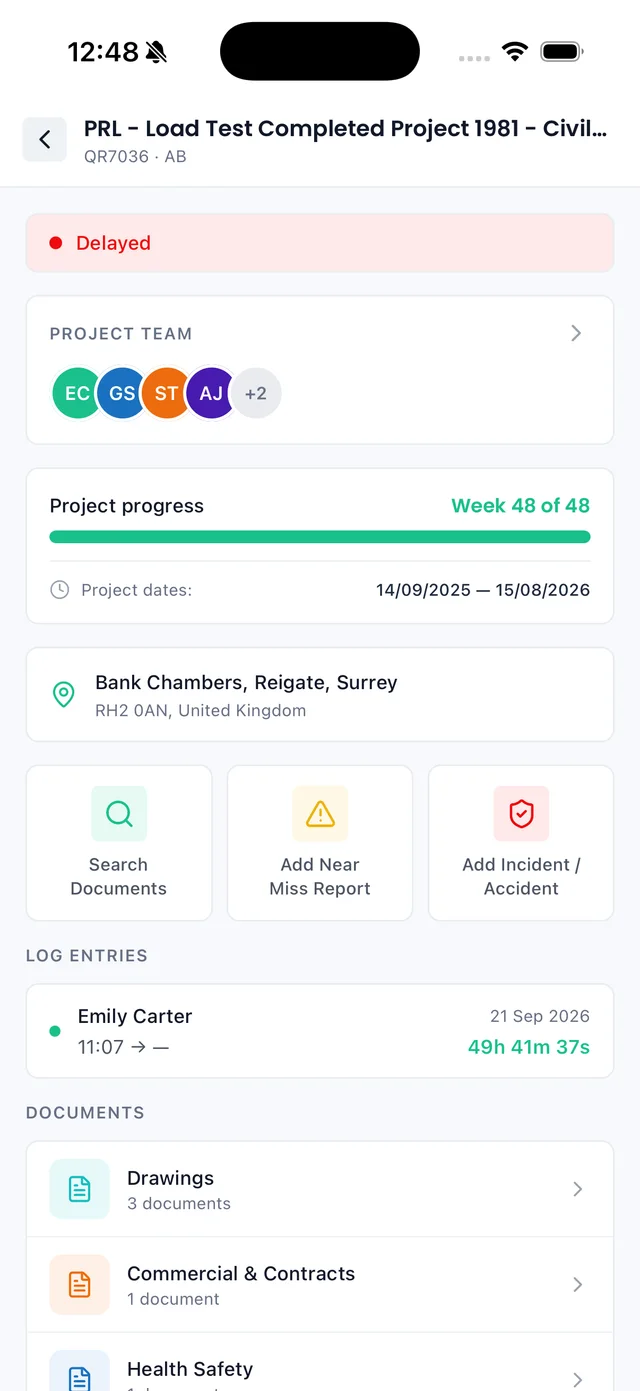
On the Sync mobile app, the Projects tab lists every project with its status and stage. Open one to see its progress, team, log entries and documents while you are on site.
Review the Summary tab
The Summary tab gives a quick view of the main project details. Use it to check the core project information is correct. It may include:
- Customer and reference.
- QR reference.
- Project location.
- Departments.
- Workstreams.
- Start on site date.
- Completion date.
- Project status.
- Project team.
Stoke-on-Trent
Staffordshire, ST1 5NX
Review the project team
The project team area shows the users assigned to the project, so you can see who is responsible for each area. Roles may include:
- Project lead.
- Project managers.
- Contract managers.
- Commercial team.
- Designer.
- CAD operator.
Where available, selecting a team member opens their contact panel, which may show:
- Name and project role.
- Job title.
- Email address, with copy and email options.
- Contact number, with copy and call options.
Edit project details if required
Use Edit project if you need to amend the project record. Only make changes if you are sure the information should be updated. Changes may appear in the activity log. You can amend:
- Project name.
- Customer reference.
- Address details.
- Departments and workstreams.
- Start on site and completion dates.
- Project team.
Update the project status
Use Update status to change the current project status. Status helps teams understand where the project sits in the overall process. For example, a project may be marked as new, on site, delayed, site handover, invoiced in full or another configured status. Only update the status when it reflects the current project position.
Share the project where required
Use Share project to give approved customer portal users or subcontractor portal users access. Shared access is controlled by the main contractor, and shared users only see the information made available to them through their portal. Only share the project with the correct customer or subcontractor.
Use the Overview tab
The Overview tab contains the project communication and history tools: Tasks and comments and the Activity log. Use it to keep project notes, actions and history linked directly to the project.
Add tasks and comments
Open Tasks and comments from the Overview tab to record comments, create tasks and track project actions. Use comments for general project notes, and tasks when an action needs to be completed by someone. You may be able to:
- Add a comment.
- Add a task.
- Filter by commenter or date.
- Review due dates.
- Delete comments or tasks, where permitted.
Task status colours help show progress at a glance:
Review the Activity log
Open the Activity log from the Overview tab. It records important project activity, so you can understand what happened on a project and when. Each entry may show the user or system action, what was changed, the date and time, and a View details option. It may include:
- Project creation and updates.
- Purchase orders added or raised.
- Status changes.
- Document updates.
- User and system actions.
- Name was set to GA-102 Ground Floor Plan
- Status changed from PENDING to SUPERSEDED
- Status changed from Raised to Sent
Use the Financials tab
The Financials tab brings together the project financial information: CVR, Customer financials and Trade partner financials. Use it to review sales value, projected costs, margin, customer invoices, quotes and POs, and trade partner purchase orders and invoices. What you can see depends on your permissions and how your business uses Sync.
Review the CVR
Open CVR from the Financials tab to see what the project is worth, what it will cost and the margin you will make. Most figures fill in from customer orders, POs and invoices, and where permitted you can add packages and adjust forecasts. It shows:
- Customer value, forecast final cost and margin.
- A Financial view of revenue invoiced, actual cost and profit.
- Cost position: committed, remaining and invoiced.
- Margin movement since the baseline.
- Line items per package, with their linked POs.
- Provisional sums, contingency and variations.
Review customer financials
Open Customer financials from the Financials tab to review the customer-side financial information linked to the project. This may include customer invoices and customer quotes and POs, each with their status, reference, dates, totals and files. Where permitted, you may be able to raise a customer quote, raise a standalone customer invoice, edit records or mark invoices as raised.
Review trade partner financials
Open Trade partner financials from the Financials tab to manage project costs linked to suppliers, subcontractors and other trade partners. It may include trade partner purchase orders and trade partner invoices. From here you can raise a PO, add an invoice, duplicate a PO or archive one.
Use the Compliance tab
The Compliance tab brings together the project health, safety and site readiness information: health and safety reports, site induction, engineers and log entries. Use it to review the compliance information linked to the project.
Review health and safety reports
Open Health and safety reports from the Compliance tab to review open and archived reports linked to the project. Each report shows its status, reference, project, who reported it, the type and the date. Open reports should be reviewed and progressed where required. Report types may include:
- Near miss.
- Accident.
- Incident.
- Equipment incident.
- Personnel accident.
Manage the site induction
Open Site induction from the Compliance tab. Only the main contractor can create and publish a site induction. If none has been created, you may see an option to create one. Once created and published, it can be completed by scanning the QR code or by logging into Sync, depending on the settings. Where a project has been shared, customer portal users and subcontractor users may also be able to complete the induction through the shared project.
Full walkthrough: how to create and publish a site inductionReview engineers
Open Engineers from the Compliance tab to review the engineers linked to the project, with their full name, email and contact number. Use this to see who is connected to the project from an engineer or site attendance perspective.
Review log entries
Open Log entries from the Compliance tab to review attendance and time records for the project. If someone is currently signed in, this may be shown in the Sign Out column. Each entry may show:
- Sign in and sign out times.
- Total time on site.
- User and subcontractor.
- Retrospective status.
- Sign in and sign out notes.
Use the Documents tab
The Documents tab is used to manage project files: drawings and project documents. Use it to keep documents and drawings linked to the correct project.
Review drawings
Open Drawings from the Documents tab to upload and review project drawings. The table shows each drawing's status, created or updated date, who uploaded it, name, comment, file and available actions. Statuses may include pending, superseded and other configured statuses. Where a drawing is no longer current, it may be marked as superseded depending on your process.
Review project documents
Open Project documents from the Documents tab. Documents are filed into categories and sub-categories, with five default categories on every new project. Search across every category, upload files or whole folders, and choose what is visible on site by QR code.
Plans, schedules, and progress tracking.
Safety procedures, risks, and incident logs.
Technical plans and design details.
Costs, agreements, and financial records.
Certificates, manuals, and final handover docs.
Keep project information up to date
Project information should be kept up to date throughout the project lifecycle. Keeping these areas current improves project visibility and reduces the need to rely on separate spreadsheets, email chains or manual updates. Regularly review:
- Project status.
- Project team.
- Tasks and comments.
- CVR and financials.
- Health and safety reports.
- Site induction status.
- Engineers and log entries.
- Drawings and documents.
Use the activity log for audit history
If you need to check what has changed on a project, use the Activity log. It helps provide a clearer project history, and is useful when reviewing who updated a project, when a PO was raised, when a status changed, when a document was updated, or what actions were completed by a user or the system.
Common issues
You may not have the correct permissions, or the tab may not be enabled for your role. Ask your Sync administrator to check your permissions.
You may not have permission to edit projects. Ask your Sync administrator to review your project permissions.
Financial information may be restricted to certain roles. Ask your Sync administrator to check your finance permissions.
You may not have purchase order permissions, or the project may not be at a status where POs can be raised. Your company may also use approval limits.
Check the trade partner has been created and is active. Only active trade partners appear in certain drop-downs.
The induction may not have been created or published yet. Only the main contractor can create and publish a site induction.
Check whether you are viewing Drawings or Project documents, and whether the document is in the correct category or subcategory.
Project working checklist
Use this checklist when managing a project in Sync:
- Project details are correct.
- Project status is up to date.
- Project team is correct.
- Customer is correct.
- Trade partners are active and linked where required.
- Tasks and comments are used for project actions.
- The activity log is reviewed when needed.
- CVR is up to date.
- Customer financials are updated.
- Trade partner financials are updated.
- Health and safety reports are reviewed.
- The site induction is created and published where required.
- Engineers are visible where required.
- Log entries are reviewed where required.
- Drawings are current, and superseded drawings are managed.
- Project documents are uploaded and categorised.
- Shared project access is reviewed where required.
Summary
To work in a project in Sync:
- 1Go to Projects and open the relevant project.
- 2Review the Summary tab, project team and details.
- 3Use the Overview tab for tasks, comments and activity history.
- 4Use the Financials tab for CVR, customer and trade partner financials.
- 5Use the Compliance tab for reports, inductions, engineers and log entries.
- 6Use the Documents tab for drawings and project documents.
- 7Update status, details and shared access where required.
- 8Keep the project record up to date throughout the project.
A project in Sync should act as the central place for project information, financial tracking, compliance records, documents and team activity, in one shared record instead of scattered spreadsheets and email chains.