How to build, run and score audits
Audits is the health and safety area for planning, carrying out and closing out site audits. You build a reusable, versioned template, schedule an audit against a project, and an auditor completes it on site through a guided wizard. Sync then scores it, gives a PASS or FAIL, and tracks any corrective actions until they are closed.
- Who can use it
- Admins and the Health and Safety role by default. Other roles can be given access per user.
- Where it lives
- Health and Safety, then Audits.
- What is audited
- A project (or a site you type in, in the Customer Portal).
- How it is completed
- An auditor works through a guided, one-question-at-a-time wizard on site.
Before you start
You cannot schedule an audit until you have built and published a template for it. The Schedule audit button stays greyed out until at least one template is live, so the first job is always to create one. Before you begin, it helps to have the following ready:
- The sections and checks your audit should cover.
- Whether each check should be scored, and how it is answered.
- Which checks are critical to a pass.
- A pass mark, if you want a PASS or FAIL result.
- The project the audit belongs to.
- Who will carry out the audit on site.
Start the template
Go to Health and Safety, then Audits, and select Create template. This opens the template wizard, which has four steps: Details, Sections and questions, Settings, and Publish. You can Save draft at any point and pick it up later.
On the first step, give the template a name and an optional description, then choose the scoring mode. This is chosen up front because it changes what the rest of the wizard asks for:
Every scorable question counts equally.
Each question carries a weight. A weight-3 question counts three times a weight-1 question.
No score and no PASS or FAIL. The audit still records answers, evidence and corrective actions.
Add sections and questions
The second step is a two-pane editor: your sections on the left, and the selected section's questions on the right. Auditors complete sections in the order shown, so you can reorder both sections and questions. Each question has a type:
- Yes / No, scored.
- Yes / No / N/A, scored.
- Multiple choice, scored.
- Full response (an option plus a comment and images), never scored.
- Text only, never scored.
For each question you can:
- Mark the correct option.
- Mark the question critical.
- Make it required.
- Set a scoring weight.
- Demand a comment and/or a photo when the answer fails.
A question can also be a follow-up, shown only when a parent answer triggers it. For example, a question that appears only when a scaffold check is answered No. Hidden follow-ups are left out of the score entirely.
Set the audit rules
The Settings step has two toggles, both on by default, plus the sign-off wording:
- Fail audit when a critical check fails. Any failed critical check fails the audit, whatever the score.
- Require completion sign-off. Auditors must confirm the sign-off statement before they can finish.
The default sign-off statement is "I confirm the audit responses above are accurate and complete." You can reword it to suit your business.
Set the pass mark and publish
On the last step, set the pass mark and check the preview of what auditors will see at final review. The pass mark field only appears when scoring is on and the template has scorable questions. It accepts 1 to 100 and defaults to 100%.
Select Save and publish. Publishing freezes the template as a version, so it is ready to schedule against a project.
Versions and forks
A published template is frozen. When you edit it, Sync creates a draft fork, and the live version keeps serving new audits until you publish the fork as the next version. The publish button reads Publish fork when you are superseding a live version.
Every audit is pinned to the template version it was scheduled against, so republishing a template never changes a completed audit's questions or score. You always know exactly which version each audit was answered against.
Schedule an audit
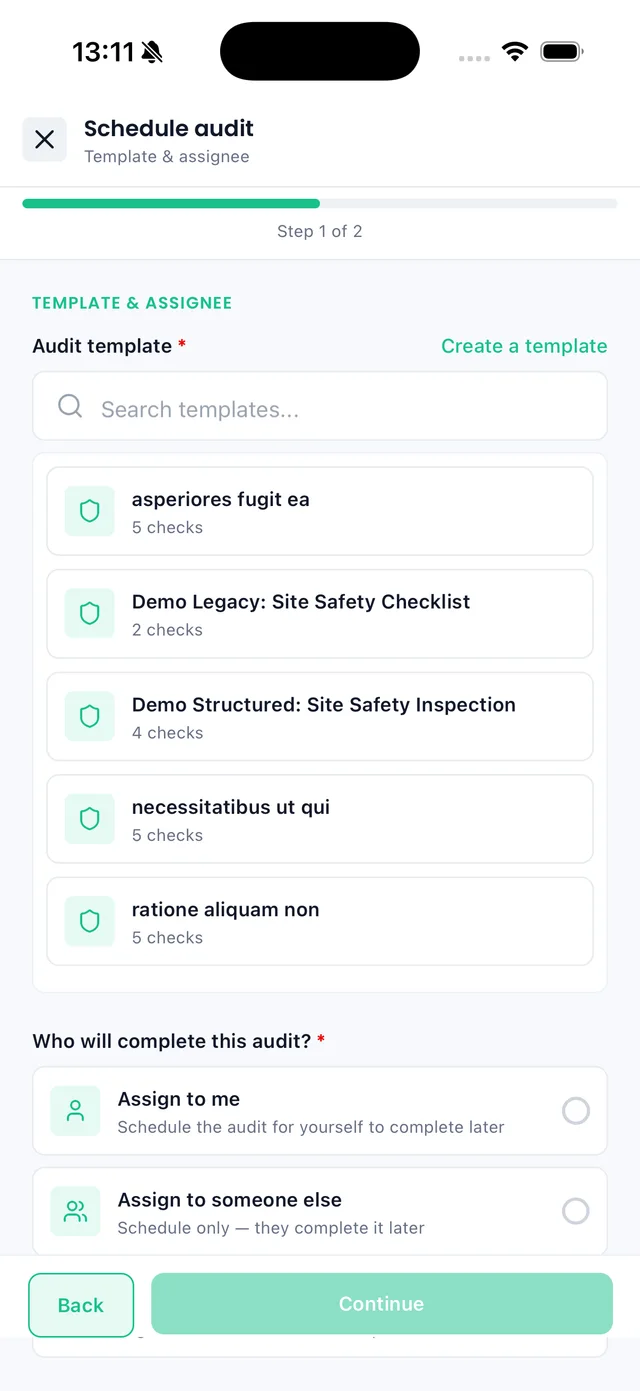
Select Schedule audit and complete the form. Only published templates are offered. The scheduled date must be today or later.
Choose the project the audit belongs to (or type the site in the Customer Portal), then set the assignment:
- Assign auditor names one person, who gets an invitation email to open and complete the audit.
- Anyone hides the auditor field and lets any permitted user pick the audit up. No invitation email is sent.
Complete it on site
The auditor opens the audit and works through the completion wizard: a welcome screen, then one question per step, then a final review. A failing answer can require a comment and a photo before the auditor can continue, and up to five files can be attached to a question.
Answers save as they are confirmed, so the auditor can Save and continue later and resume from the audits hub. At the end, the auditor checks the answers, ticks the sign-off statement where required, and can notify extra people. Health and safety users are always notified automatically.
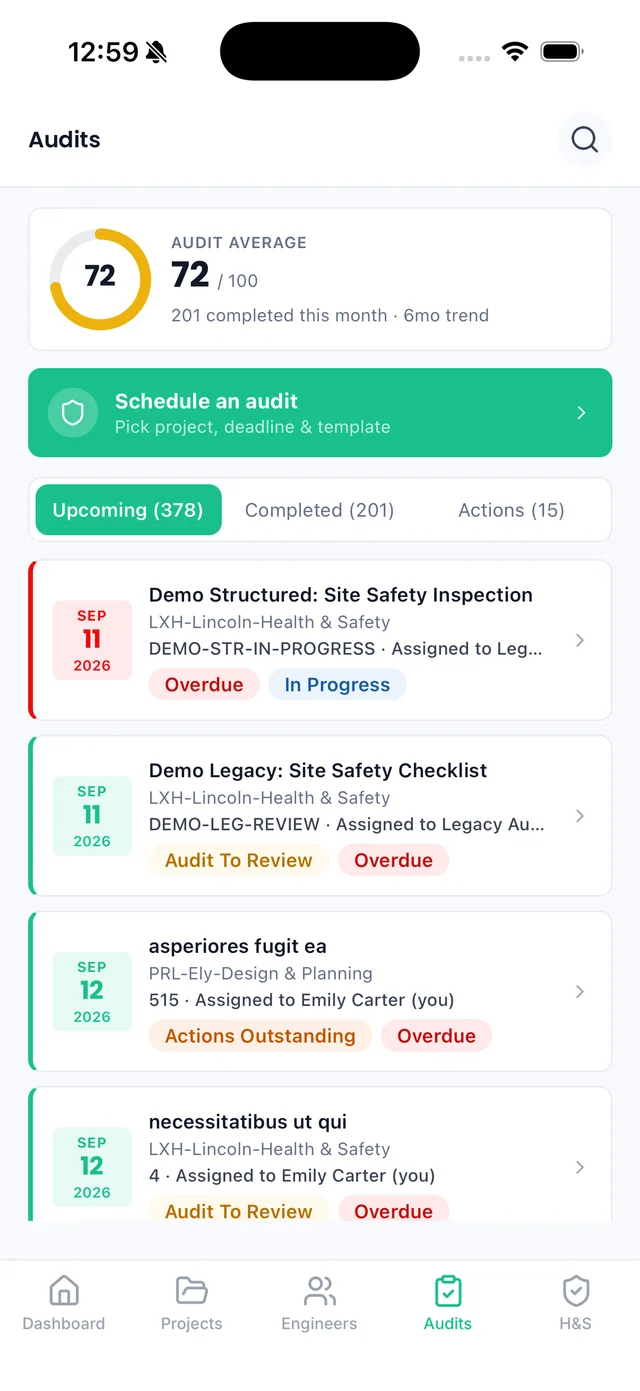
Audits on the mobile app
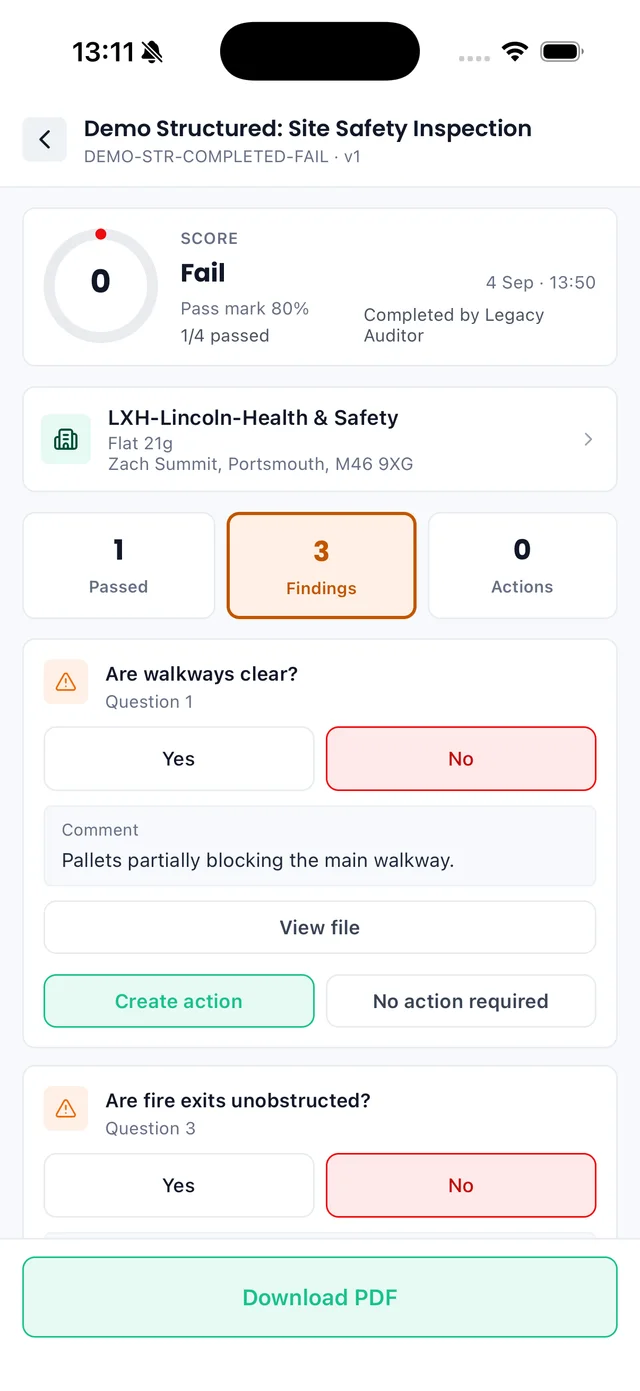
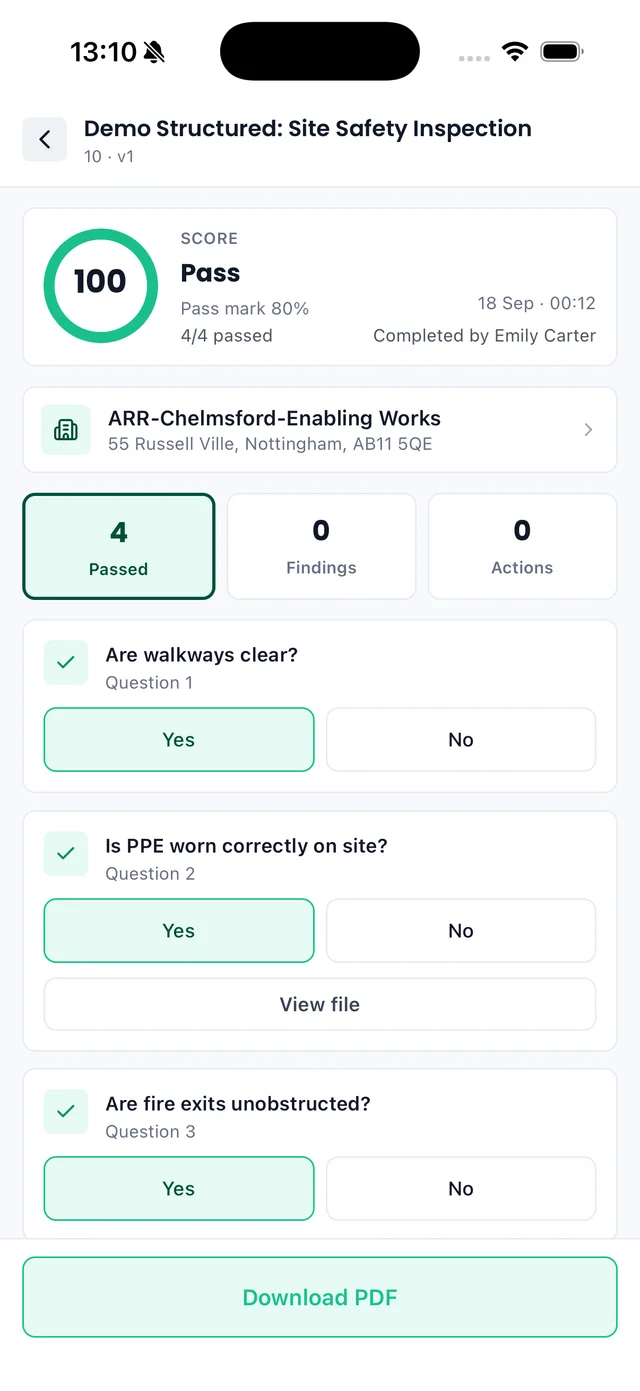
On the Sync mobile app you can schedule audits, see your average score and what is coming up, review findings and raise actions, and download the scored result as a PDF.
Understand your result
On completion, Sync scores the audit and resolves a PASS or FAIL. The result page shows a score ring, the PASS or FAIL, any critical failures, then the failed checks, with an answer summary and the corrective actions beneath. Here is how the score is worked out:
- Take the questions that were visible. Hidden follow-ups are excluded.
- Keep only the scorable types: Yes / No, Yes / No / N/A and Multiple choice.
- Drop anything left unanswered, and anything answered N/A.
- A question passes only if the answer matches the option marked correct.
- Percentage: passed divided by counted. Weighted: passed weight divided by total weight.
- PASS if the score is at or above the pass mark. Default pass mark is 100%.
Corrective actions
A corrective action is how a failed check gets put right. You can raise one from the completed audit, or straight from a failed question in the answer summary, so it is already linked to the check that caused it. For each action you can:
- Raise an action against a failed check, with a description, assignee, due date and priority.
- Reschedule an action, with a reason, which is written to its history.
- Close an action with a closing comment once the work is done.
Naming an assignee sends them the "Corrective action assigned" email. An action is Open or Closed, and shows as Overdue when an open action is past its due date. The Corrective actions tab lists every action across every audit in one place.
The audits hub
The audits hub is where everything lives. Along the top are four summary tiles: audits scheduled, due today, completed this month with the average score, and open actions with an overdue count. Below them are the tabs:
- Overview. Four summary tiles and the five soonest-due audits.
- Scheduled. Every open audit, soonest deadline first, searchable and filterable.
- Completed. Finished audits with their result and a summary of any actions raised.
- Corrective actions. Every action across every audit, each linked back to the check that caused it.
An audit's status is Scheduled, In progress or Completed. The tables also show Due today and Overdue, worked out from the scheduled date.
The PDF report
Every completed audit can be exported as a PDF report using Download PDF on the result page. It is a plain, print-first document: the header and details, the outcome, the critical failures and failed checks, the corrective actions with their history, and the full answer summary numbered question by question, ending with the sign-off.
Evidence photos are embedded in the report, and other files appear as links. The PDF is available only for a completed audit, and only to users with view permission on audits, and it can be shared through a signed link.
See health and safety audits in the productTroubleshooting
You need a published template first. The Schedule audit button stays disabled until at least one audit template has been created and published.
Open the audit on the Scheduled tab and use Resend email. If it keeps failing, check the auditor’s email address on their user record.
A critical check failed. When "Fail audit when a critical check fails" is on, one failed critical question fails the whole audit, whatever the score.
Either the template uses the None scoring mode, or nothing scorable was answered (every scorable question was skipped or answered N/A). The audit still completes and shows as "No scorable".
Yes. Editing a published template creates a draft fork, and the live version keeps serving new audits until you publish the fork. Audits already scheduled keep the version they were scheduled against.
No. Answers you have already confirmed are saved, and the audit becomes In progress. Resume it from the audits hub whenever you are ready.
Any user permitted to complete audits can pick it up. When the assignment is a named auditor instead, only that person (or someone with view permission) can open it.
Templates and audits are separate permissions. A user with template access but not audit access sees only the Templates tab. Ask an Admin to review your permissions.
Summary
To run an audit in Sync:
- 1Build an audit template: add sections and questions, choose the scoring mode, and set the pass mark.
- 2Publish the template. Publishing freezes it as a version.
- 3Schedule an audit against a project and assign an auditor, or set it to Anyone.
- 4The auditor completes the audit on site, one question at a time, adding evidence where needed.
- 5On completion Sync scores the audit and gives a PASS or FAIL.
- 6Raise corrective actions for failed checks and track them to closure.
The same engine, wizards and scoring work in the Customer Portal, where an audit is attached to a site you type in and the Portal has its own Templates tab. Where a label differs, it is called out on screen, for example "Project" becomes "Site".